
Connectivity isn’t guaranteed, ever. A truck can block the signal, an operator may face downtime, your device might find itself in a far remote area, or a server simply isn’t listening to the right port.
Managing a successful IoT project isn’t about eliminating the chances of your device going offline, it’s about how you respond when it happens.
In this article, we’ll walk through the most common connectivity issues, how to detect them, and how to get your devices back online.
🎥 Watch the full video on Cellular IoT DIY Troubleshooting.
Architecture of an IoT Solutions
The architecture of a cellular-based IoT solutions consists of 4 components:
- The Connected Device (e.g. a GPS tracker)
- The Mobile Operator (e.g. Vodafone)
- The core network (e.g. Monogoto)
- The Server which usually runs in the cloud (e.g. AWS)
If something breaks, it’s likely in one of these four. Let’s break it down.

What does a healthy connection look like?
Before we dive into common issues, it’s important to understand what a healthy connection looks like.
Your connectivity provider usually comes with a dashboard showing all connections. At Monogoto, this is called the Monogoto Hub. The Hub lists all SIM connections (called Things) and provides detailed information about each of them.
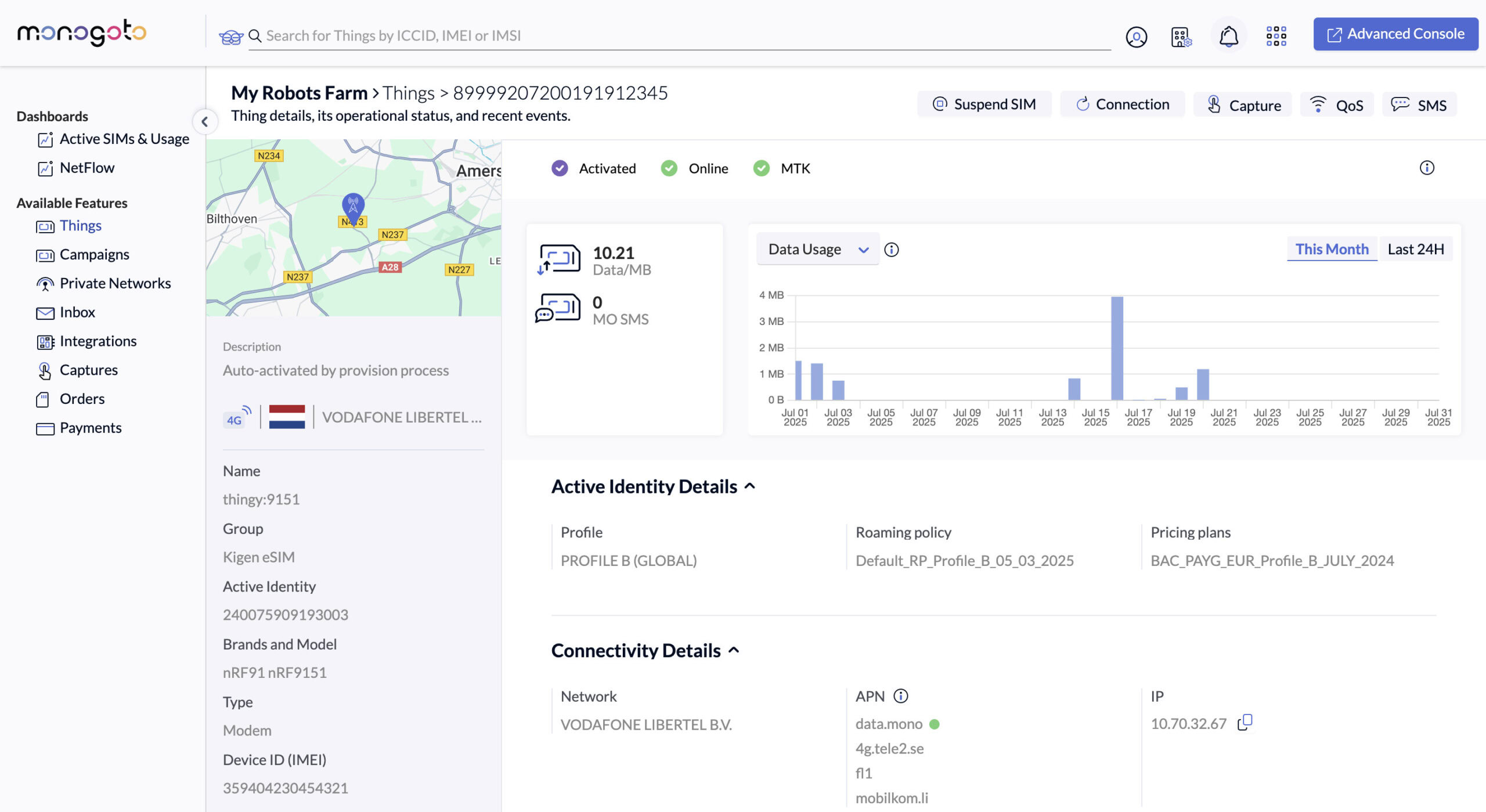
A healthy SIM appears as “Activated”, as well as “Online”. The Monogoto Hub also reports the mobile network, the Radio Access Technology (RAT) e.g. NB-IoT. Additionally, data usage is visualized.
ℹ️ When the Thing reports “Offline” there’s no cause for worry. Devices may break the connection to preserve energy.
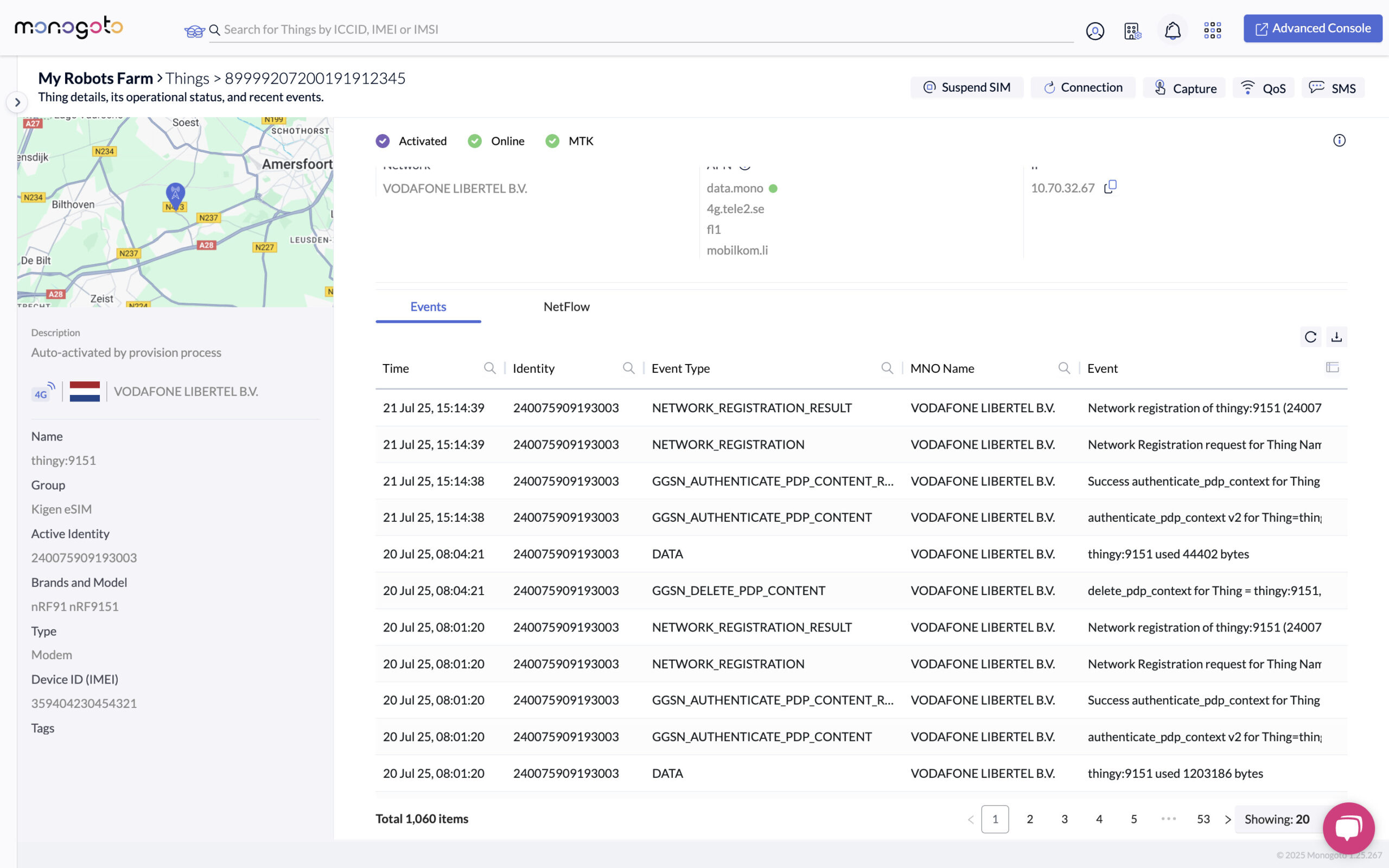
The Events tab shows connectivity logs. A healthy event series shows:
GGSN_AUTHENTICATE_PDP_CONTENT
GGSN_AUTHENTICATE_PDP_CONTENT_RESULT
NETWORK_REGISTRATION
NETWORK REGISTRATION RESULT
When the cellular session breaks, the following events are shown:
GGSN_DELETE_PDP_CONTENT
DATA – The Data event type shows the amount of data used during the data session.
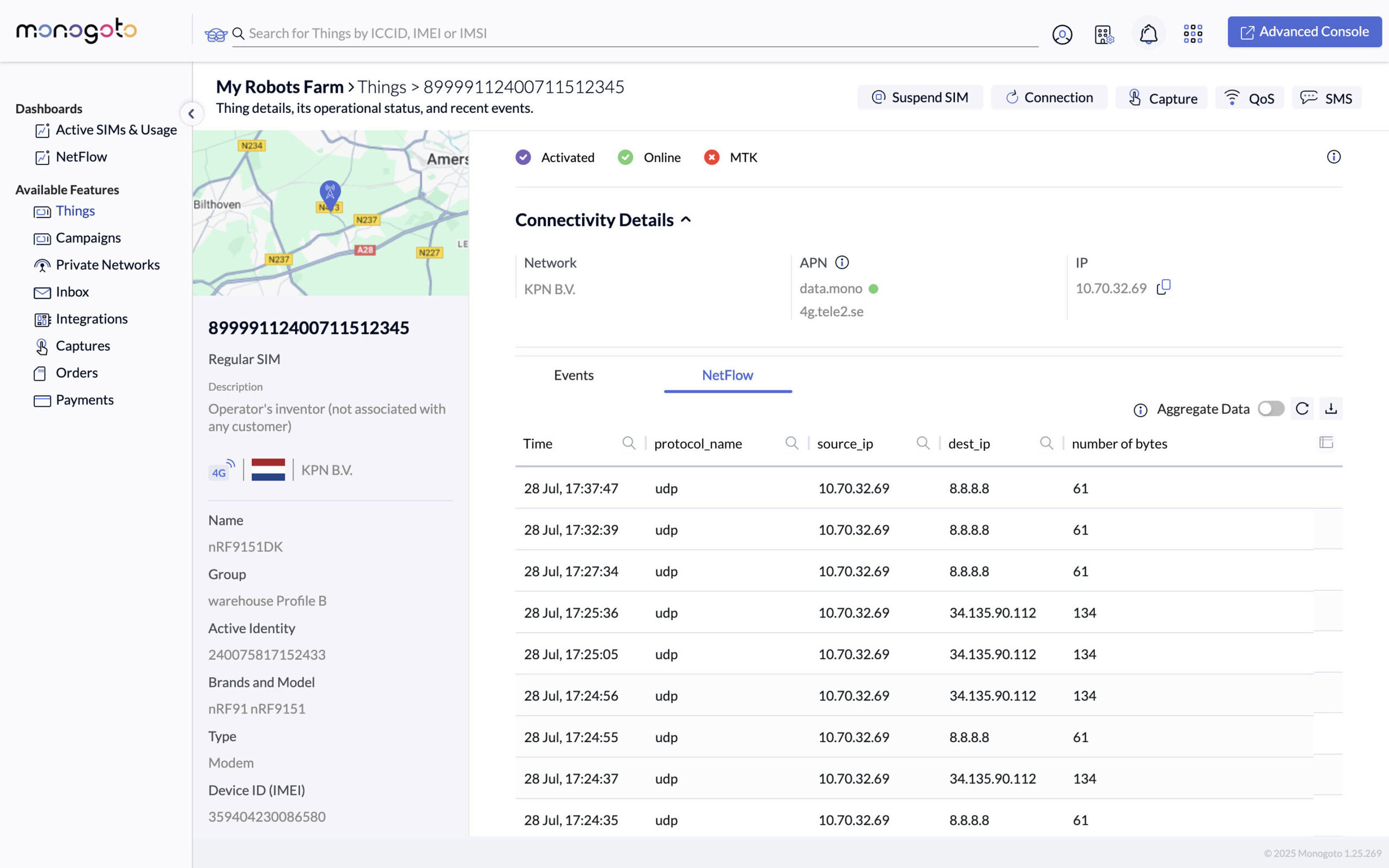
The Netflow tab shows the metadata of the devices’s IP, including the IP protocol, the source and destination IP address, and the number of bytes sent.
ℹ️ Netflow is disabled by default. Learn how to enable this feature.
HELP?! My device is not connected!
You receive an alert from Monogoto, or an angry phone call from a customer.
Now what?
Below a list of common issues that may arise.
Issue 1 – Device stuck in attachment loop
Symptoms
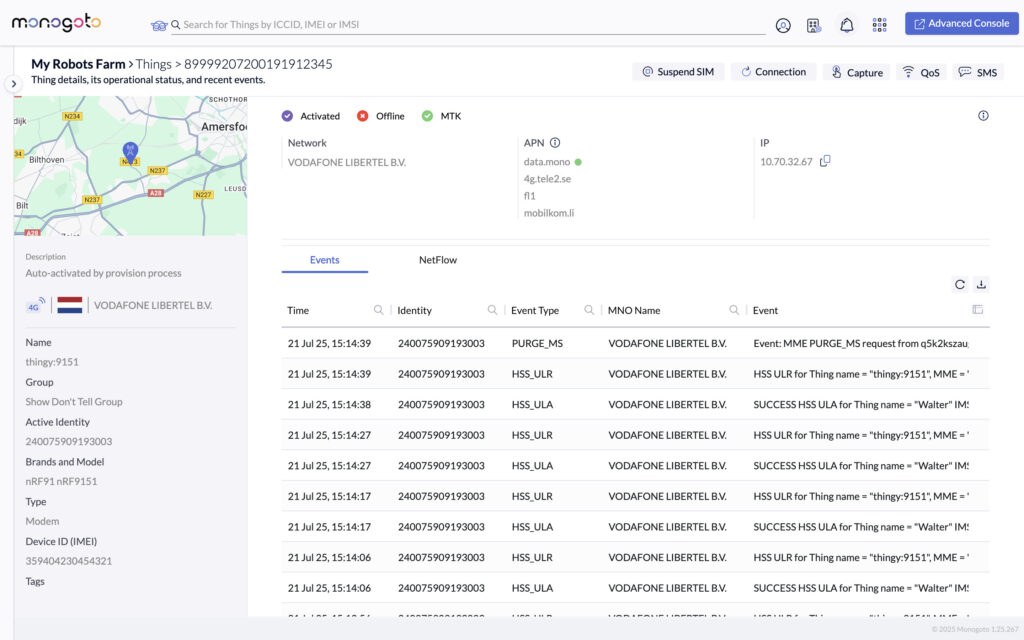
Events show repeated HSS_URL (Update Location Request) and HSS_ULA (Update Location Request).
This is the initial step in which the radio tries attaching to a mobile network. It continuously retries until the device gets purged by the networks (PURGE_MS), meaning it gets kicked from the network. Probably because it did too many attachment tries.
What it means:
- The device is alive
- The device is in range
- The device can’t attach to a Mobile Operator.
It’s likely a misconfiguration of the radio module which disables the device to attach to any network.
Potential causes
A common issue arises when the APN is not explicitly defined. If the APN is not set, a mobile network the device connects with may push its network APN onto the device (e.g. live.vodafone.com). This is fine as long as the device stays connected to that specific network. It becomes an issue when the device tries to connect to a different network, but is not able to because it holds a mobile network-specific APN.
Other issues could be caused by hardcoding one operator in the configurations, by networks not supporting the device’s RAT (Radio Access Technology, e.g. NB-IoT), or when roaming restrictions are defined in the Monogoto Hub.
How to fix
Radio configuration issues are hard to fix without having physical access to a device because the device cannot be reached. Connecting to the device directly is required to update the device configurations, done through AT Commands. Learn more about what AT Commands to use when debugging a connectivity issue.
ℹ️ For more information about all available event logs, check the Monogoto Docs
Issue 2: Single-Sided Session
An frequently observed issue occurs when a device has an active data session and is sending traffic, but the server is not receiving or responding. This is referred to as a single-sided session.
We refer to a single-sided session when a device sends uplink traffic (from the device to the network), but does not receive any downlink traffic (from the server back to the device). In simpler terms, there’s only one-way traffic.
How to identify
A Single-Sided Session can be exposed in the NetFlow tab. Data packets are only going in one direction, from the IP address of the device to a destination IP address.
More detailed information about the data traffic can be exposed through the use of the Captures. Captures allows for downloading all the incoming and outgoing traffic, processed by Monogoto’s Core Network in a given timeframe. If a single-sided session is present, you will see only outgoing traffic, while no data is sent back to the device.
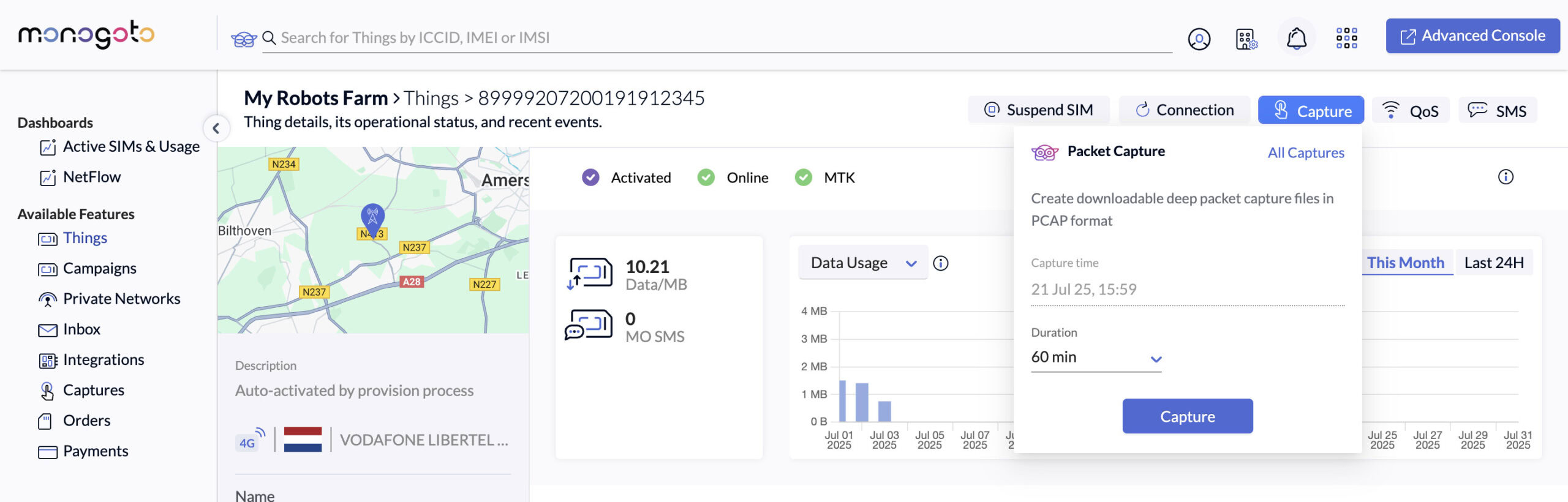
ℹ️ The Capture feature first needs to be activated. For details, see the Monogoto Docs.
The Capture files (.pcap) can be opened using Wireshark. The below example shows data being sent from the device to a server at frequent intervals, but no data is sent from the server back to the device.
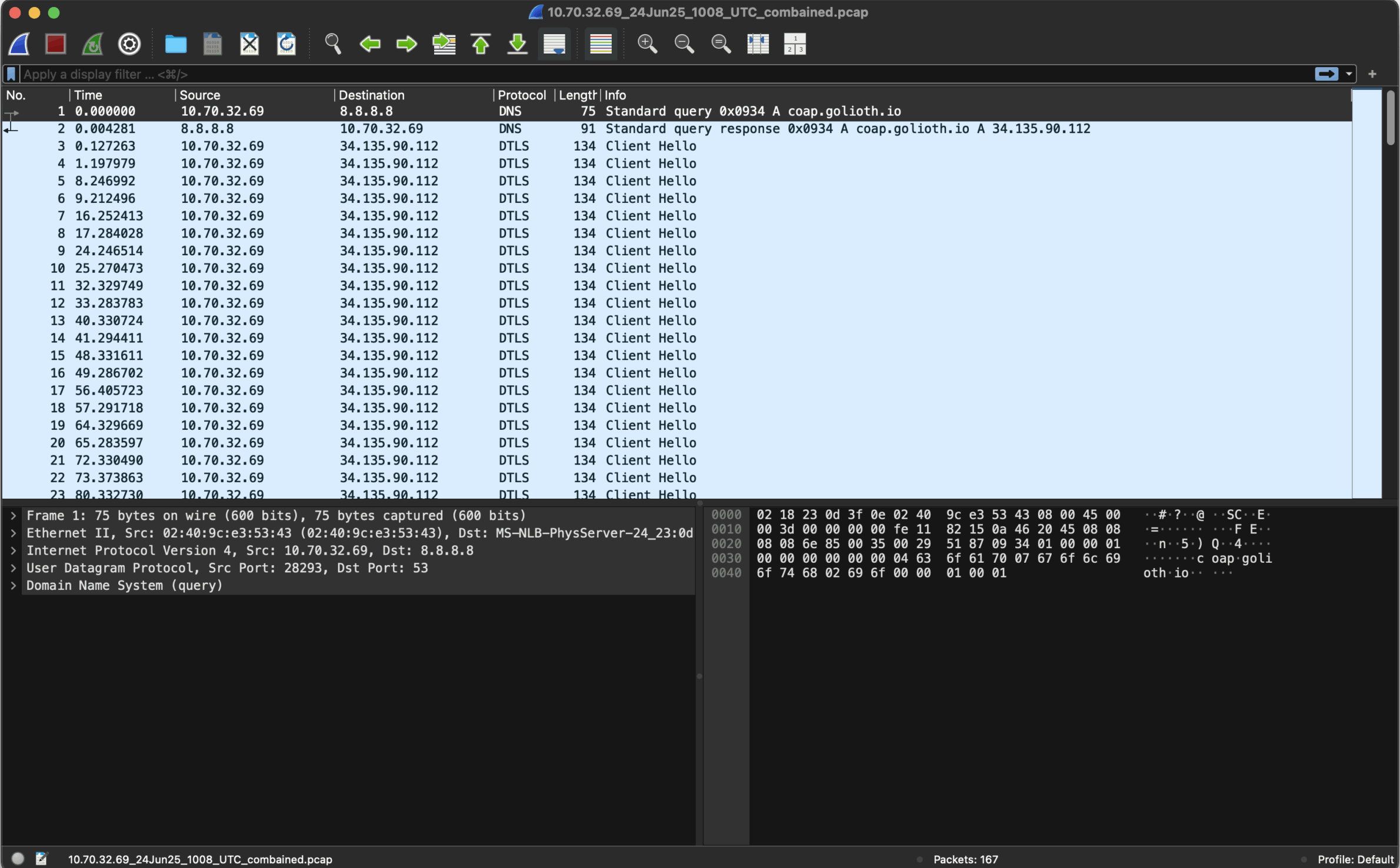
ℹ️ It’s not necessary for servers to send data back to the device. Plain UDP doesn’t use confirmations. When seeing data to only be sent one way, don’t assume directly that something is going wrong.
ℹ️ Learn more about Captures
Common Causes
Typical reasons the server may not be responding:
- Firewall Rules or IP Whitelisting: The server may be blocking traffic from the device’s public IP due to firewall restrictions.
- Incorrect Server Configuration / Routing Issues: The application or service on the server may not be listening on the correct port or interface, or return packets may be dropped or misrouted due to incorrect routing configurations.
- NAT Timeout or Mapping Issues: If the server is behind a NAT, the return path may be broken if stateful NAT mappings expire or are not maintained properly.
- DNS Resolution Errors: The device may be resolving a domain to the wrong IP or a stale IP, resulting in traffic being sent to a non-functional server.
- Application-Level Timeouts: If the server takes too long to process requests, the device may close the session before a response is sent.
- Misconfigured VPNs or Tunnels: Traffic may be entering a secure tunnel but not exiting it properly due to routing or policy issues.
Instead of looking at the device itself, start debugging the server. Usually, it doesn’t have anything to do with the device, mobile network or core network.
Issue 3: Device gone silent
A common connectivity issue is when the device suddenly stops sending data while the Monogoto Hub still marks the device as online. It is harder to debug this specific issue because there are different potential causes for the data not being received.
To isolate the issue, we need to know if the device is not sending data, or if the data is not being processed later down the line.
We’re again using the Captures feature to validate if any data is being received by the Core Network. If the file is completely empty, we know that no data reached Monogoto’s Core Network.
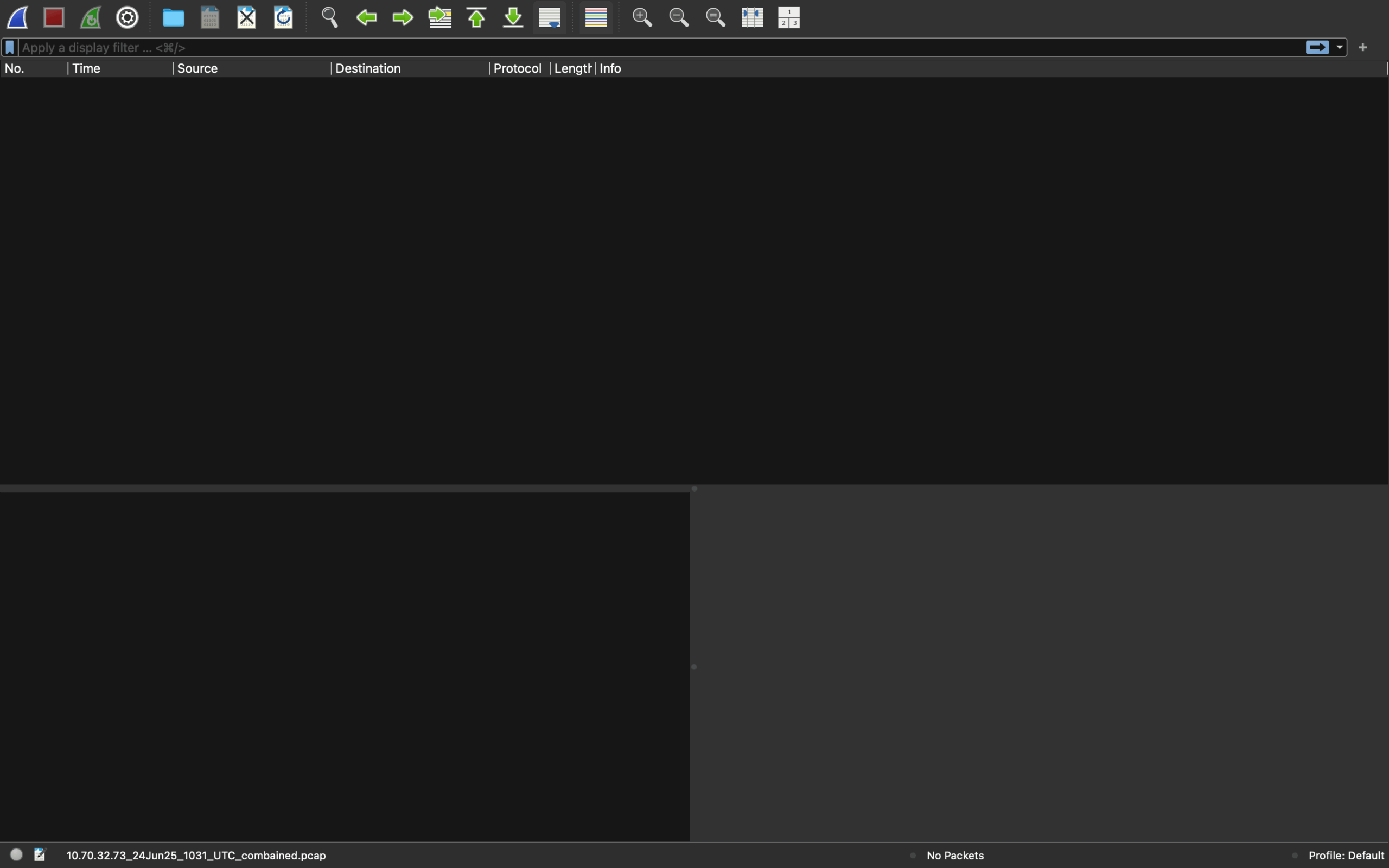
As an additional check, you can ping the device from the Monogoto Hub. If the device responds, it’s not a device issue. This feature is called QoS, or Quality of Service, and can detect if the device is in reach. Learn more.
ℹ️ It is not guaranteed that the device responds to network pings. Some devices, although online and active, don’t respond at all.
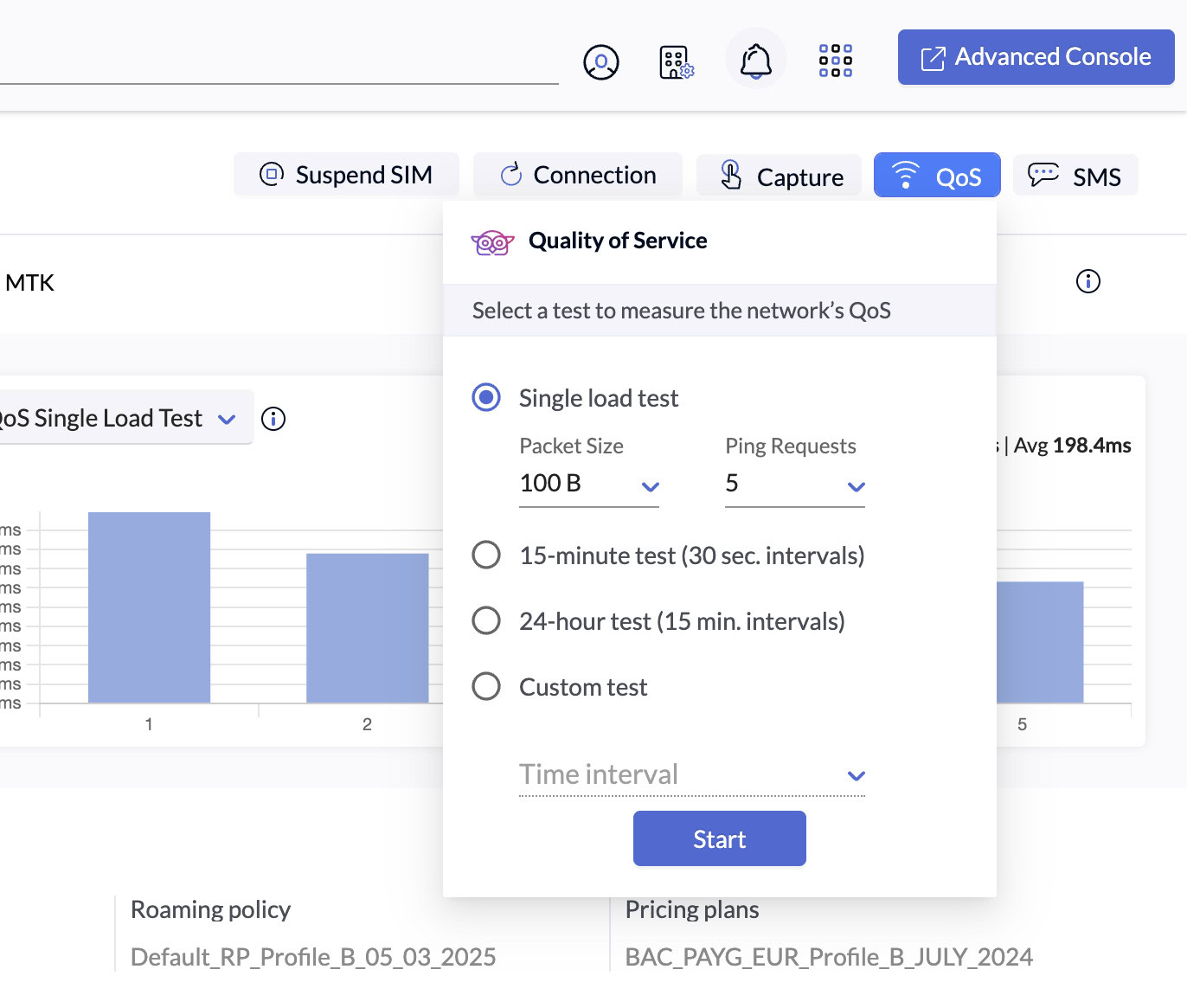
If the Capture file is empty and device does not respond to QoS pings, there are 2 potential scenarios:
- The device is out of range of any network, and no mobile cell receives its transmission.
- Or, the device is offline, potentially due to a dead battery, broken antenna or any hardware-related issue.
It’s hard to tell the exact cause. Context information can provide more information; check the battery status, movement history or device logs.
Issue 4: Core Network
The Core Network is the cloud component responsible for routing data, managing SIMs connections, applying security rules etc.
ℹ️ Depending on the M(V)NO you’re working with, different capabilities/features are available.
A SIM has a so-called identity, sometimes referred to as the profile. This identity defines (among others) the mobile networks the SIM can connect with.
ℹ️ The Monogoto support team has the ability to remotely change the profile of the SIM. In case the SIM is shipped to a place without roaming coverage, the identity can be updated, enabling the SIM to connect to different networks.
Monogoto has different features to control how SIMs operate, what networks they connect with and what security conditions need to be met before data can be sent. All of these settings can cause the device not to work as expected.
Roaming restrictions
Default roaming profiles to be overwritten, limiting the networks SIMs can connect with. Reasons for doing so may be to avoid expensive or unreliable networks.
Security capabilities
Different security settings can be defined which may block SIMs to start data sessions, or attach to a network when met. Examples are IP Security settings, which can block incoming or outgoing traffic when using specific IP protocols (like UDP), IP addresses or ports.
A SIMs can also be locked to an IMEI (a unique hardware ID), disabling a SIM to be used to any other device it’s not intended for.
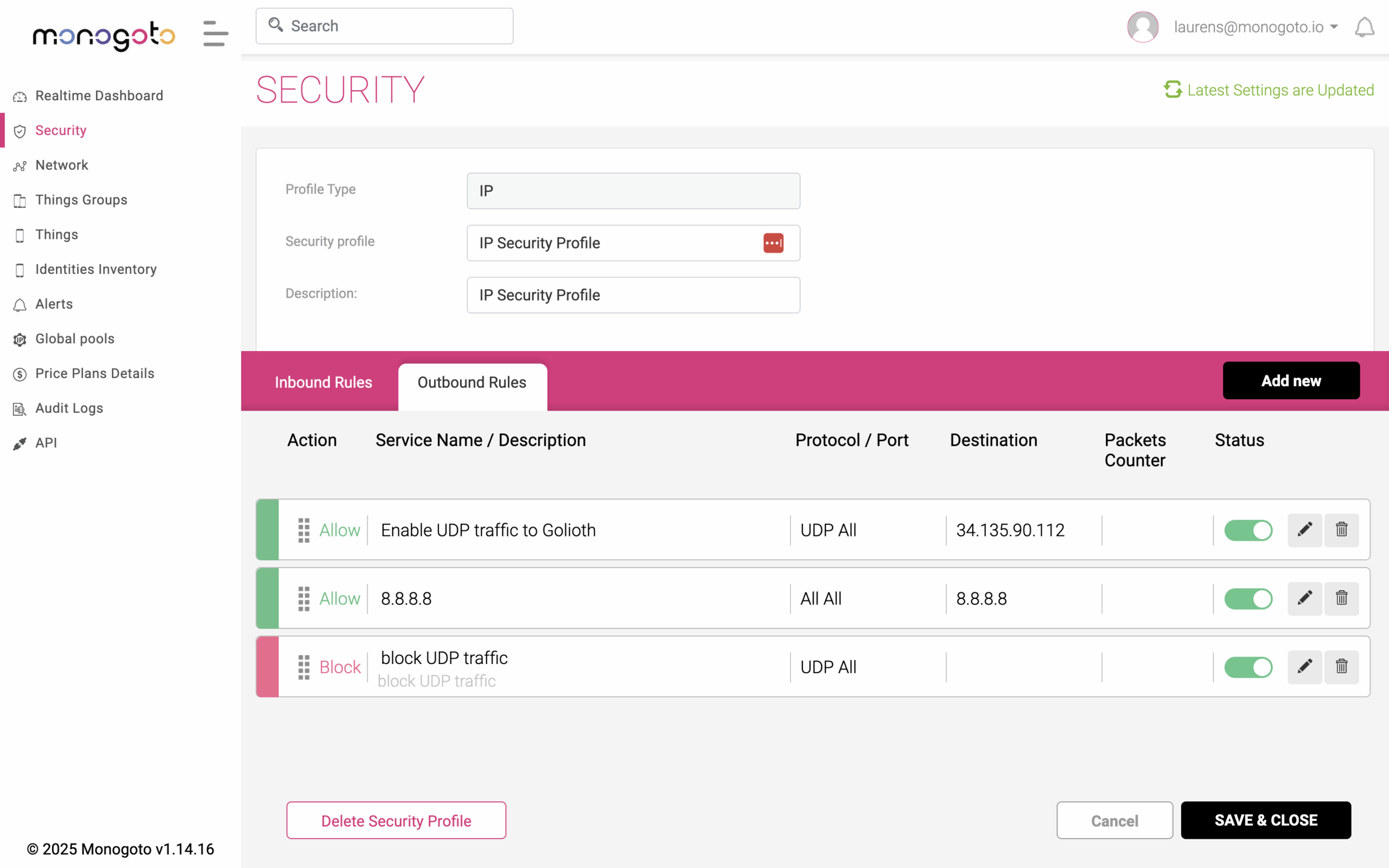
Symptoms
While debugging such issues, the events log usually provides valuable insights into the cause. IMEI lock restrictions cause a specific event log to appear: Failed to authenticate, IMEI not equal to Thing Master IMEI. Roaming restrictions as indicated through the event log: Failed Network registration. Identity restricts roaming.
Conclusion
It happens to be best of us, devices that simply won’t connect reliably. But, instead of blaming your operator, you can now debug your issue and respond quickly to get your device back online.
The reality is: connectivity issues are normal in any cellular IoT deployment. What matters is your ability to systematically troubleshoot and isolate the problem. Whether it’s a misconfigured APN, an unreachable server, or a device that’s physically out of coverage.
Let’s recap:
- Use the Events log to check if connectivity logs, indicating if devices (try to) attach to a network and start a data session.
- Use Netflow to confirm metadata about IP traffic.
- Use Captures to analyze actual traffic and identify issues such as one-sided sessions.
- Use QoS pings to test device reachability.
Got a tricky issue you can’t figure out?
Post it in the Monogoto Forum — we’d love to take a look and walk you through our process.